![NovisLogo-White Logo-REGISTERED.svg]](https://support.novis.com.au/hubfs/NovisLogo-White%20Logo-REGISTERED.svg)
On a record e.g. a Contact, you can add or remove label associations.
- Navigate to the contact
- To add or edit labels for an existing association, hover over the association card, click More, then select Edit association labels.
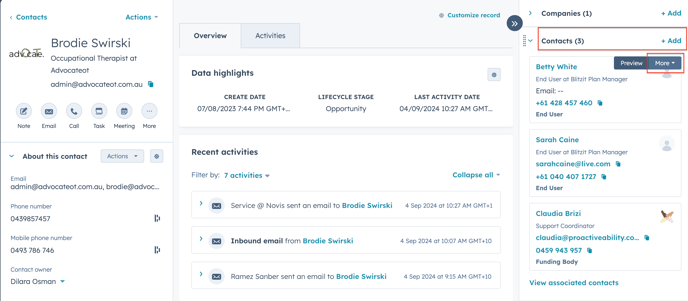
- In the dialog box:
- To add a label, click the dropdown menu and select the label.
- To remove a label, click x next to the label.
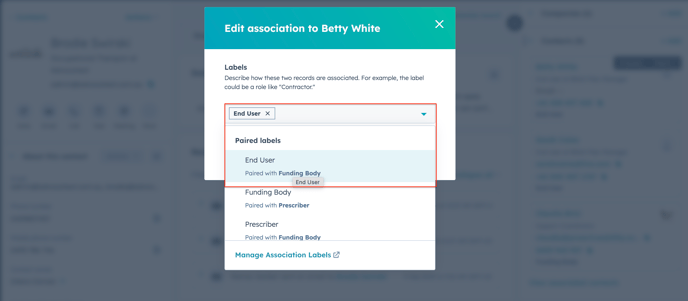
- Repeat this action for each of the contacts to pair them up with the main contact.
In this example, Betty White, Sarah Caine and Claudi Brizi are being associated, or paired with Brodie Swirski.
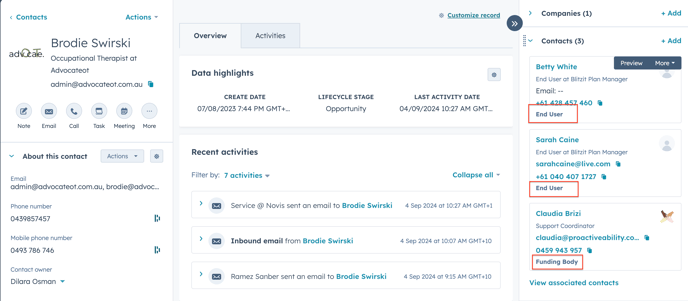
IMPORTANT:
You must then go to the associated contact and pair it up by also adding association label.
In this case, Brodie Swirski would be the Prescriber for Betty White who is the End User
If there are no contacts associated, the label association can be added at the same time as you add the contact:
- Click Add in the Contacts box

- Select to Add existing.
- Click on Next button
- Click on Add association label

- Select from the dropdown menu
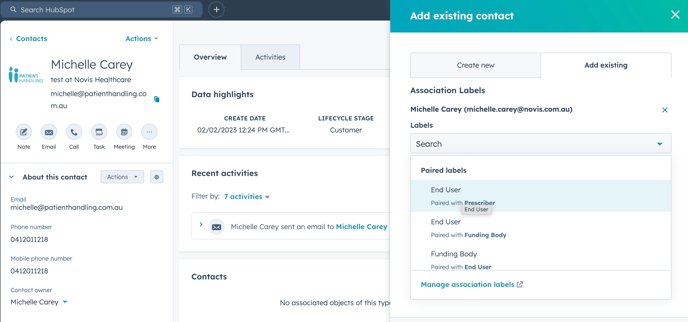
IMPORTANT:
You must then go to the associated contact and pair it up by also adding association label.