![NovisLogo-White Logo-REGISTERED.svg]](https://support.novis.com.au/hubfs/NovisLogo-White%20Logo-REGISTERED.svg)
Connect a personal email account to HubSpot to send one-to-one emails from the CRM, log email replies to the CRM, send sequences emails, and install HubSpot Sales to access the sales tools in your inbox.
This email account should be unique to your user and not used by anyone else on your team. It should be the email address you typically use to send emails to your contacts, such as your company email address. By connecting your personal email account, you give HubSpot permission to send emails to your contacts using your company’s email servers. Some HubSpot tools require a personal email connection. You can connect multiple personal emails to HubSpot that your user can use to send emails.
A team email address is an email address that multiple users have access to and use to communicate with customers. You can connect a team email address to the conversations inbox so your team can view, manage, and reply to emails in one place. Learn how to connect a team email address to HubSpot, or review this guide about the different inbox connections in HubSpot.
Before you get started
Below find definitions for terms relevant to the email connection process.
| Term | Definition |
| Email account/address | The email address that you use to log in to your email client and send emails to your contacts, such as your company email address (your.name@hubspot.com). |
| Email client | The application that you use to access your emails. In some cases, your email client can be the same as your email provider (i.e., Gmail is an email provider and an email client). |
| Email provider | The service, such as Gmail or Office 365, that lets you send and receive emails. |
Please note: HubSpot does not support a connection with ActiveSync, but if you use ActiveSync in your email client, connect your account using the HubSpot-Exchange connection.
Connect your email
You can connect your personal email in your account settings. Users must have Personal email access to connect an email.
- In your HubSpot account, click the settings settings icon in the top navigation bar.
- In the left sidebar menu, navigate to General.
- Click the Email tab.
- Click Connect personal email.
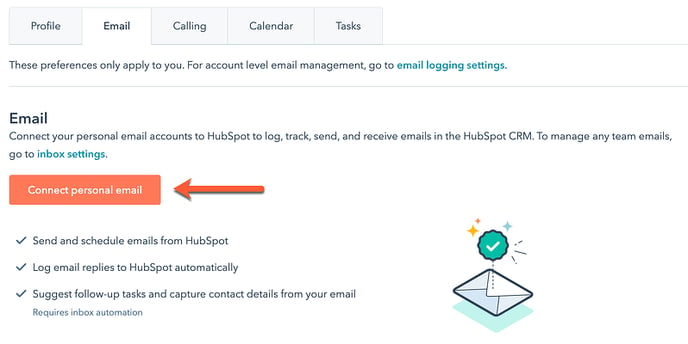
- If you want to turn on inbox automation features when you connect, in the dialog box, select the Turn on inbox automation checkbox.
- Click Connect your inbox.
- In the text field, enter your email address.
-
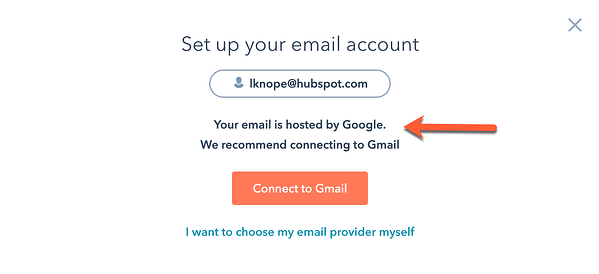
HubSpot will attempt to recommend which email provider you should connect with. Click Connect to [recommended provider], then continue the steps below for your specific provider to finish connecting your personal email.
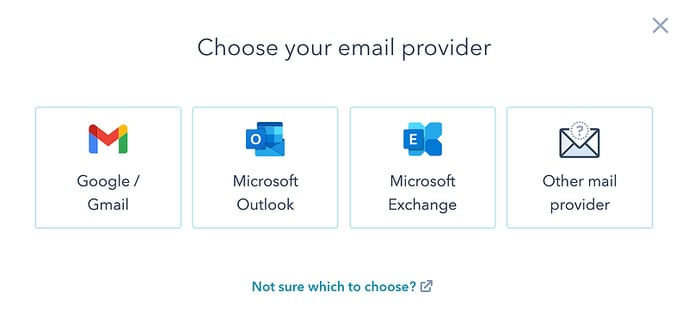
- If HubSpot cannot identify your email provider, select an option, then continue the steps below for your specific provider to finish connecting your personal email.
Microsoft Outlook
Please note: you cannot connect Office 365 shared mailboxes to HubSpot. Office 365 GCC High and DOD environments are also not supported by HubSpot.
- Read through what to expect when you connect your Office 365 inbox to HubSpot, then click Continue.
- You'll be prompted to log in to your Office 365 account. Enter the email address of the Office 365 account you want to use. If you're already logged into one or more of your email accounts, choose the account you want to connect.
- You'll be redirected back to your settings where the connection will be verified and completed. A dialog box will appear to inform you that your Office 365 inbox is now connected to HubSpot.