![NovisLogo-White Logo-REGISTERED.svg]](https://support.novis.com.au/hubfs/NovisLogo-White%20Logo-REGISTERED.svg)
Assign a meeting outcome on desktop
After the meeting takes place, the host can assign a meeting outcome to better track meetings with contacts.
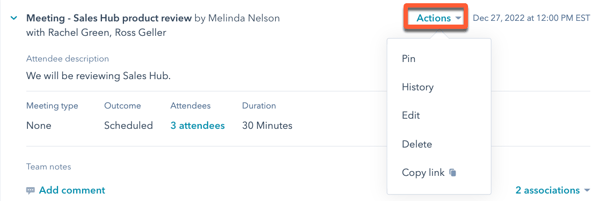
- On the record, click the Actions dropdown menu on the meeting engagement and select Edit.
- Click the Outcome dropdown menu and select a meeting outcome.
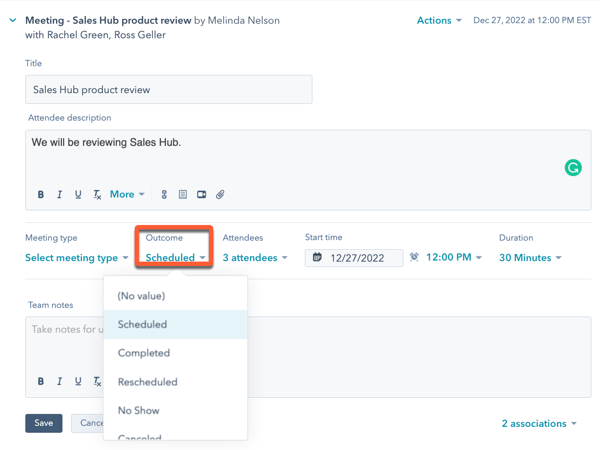
- Click Save.
Please note: changes to meeting descriptions on the contact record will only be sent to attendees if you are using Google Calendar and have turned on the Google Calendar two-way integration with HubSpot . If you are using an Office 365 calendar or do not have the integration turned on, update the meeting description in the calendar event to send changes to the attendees, not in the contact record.
Assign a meeting outcome in the HubSpot mobile app
Please note: This feature is currently only available for iOS users.
- Open the HubSpot app on your iOS or Android device.
- Tap Menu, then tap Contacts in the left sidebar.
- Tap the name of the record associated with the meeting.
- Tap the menu icon on top right of the activity. Then, click Edit.
- Top the meeting outcome to select a new outcome from a list.
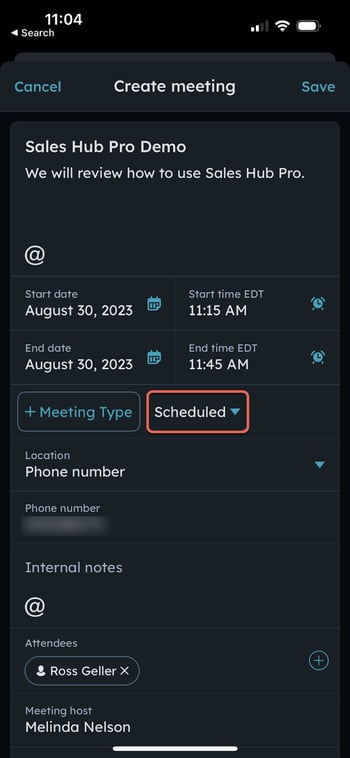
- Tap Save.