
- Open the HubSpot app on your iOS or Android device.
- Tap Menu, then tap Contacts in the left sidebar.
- Tap the name of the record.
- Tap More. Then tap Meeting. To set up your meeting:
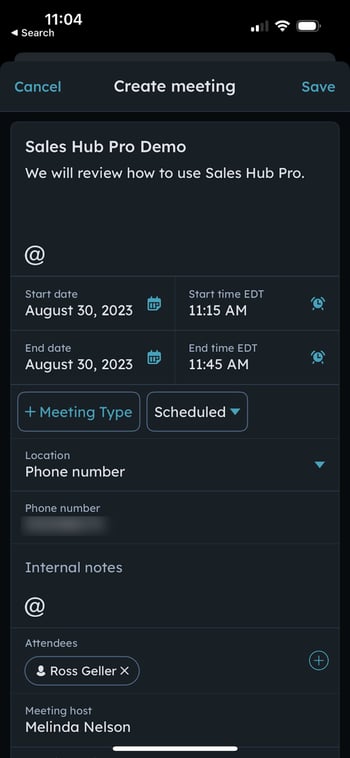
- Enter a title and description for your meeting.
- Tap the Start date, Start time, End date, and End time to set the date and length of your meeting.
- Tap Check availability to view your calendar.
- Tap Meeting type to select the meeting type. This setting is available only if you have enabled customized call and meeting types.
- Tap location and select one of the following options for the meeting location.
- Address: Write the address in the text field.
- Phone number: Write the phone number in the text field.
- Custom location: Write customized location details in the text field.
Please note: Video conferencing is not available when scheduling a meeting from the HubSpot mobile app.
- Tap Internal Note enter any internal notes for your team members to review. The meeting contact attendees will not see this information on their calendar invite. Use the @ to tag other users.
- Tap Associated with to search and select/clear the X next the records to associate with the meeting activity.
- Tap Save. In the pop-up box, click Continue and send.
- The contact needs to have a valid email address populated in the Email property to receive an invitation.
- Once the meeting is scheduled, your contact will receive an invitation with an .ics file which can be added to their calendar.
- A meeting will automatically be created for you in your calendar.
The meeting will save as an engagement on the record's timeline. Your name will be listed as the host and organizer.
After the meeting is scheduled, you can edit it in the HubSpot mobile app. To edit a meeting:
- Open the HubSpot app on your iOS or Android device.
- Tap Menu, then tap Contacts in the left sidebar.
- Tap the name of the record associated with the meeting.
- Tap the menu icon on top right of the activity. Then, click Edit.
- After you've made changes, tap Save.