![NovisLogo-White Logo-REGISTERED.svg]](https://support.novis.com.au/hubfs/NovisLogo-White%20Logo-REGISTERED.svg)
If you are a user in a Sales Hub Professional or Enterprise account with an, you can schedule meetings on behalf of other users in the account who also have an assigned seat, have their calendar connected, and have calendar sync turned on.
To schedule a meeting for another user:
- In your HubSpot account, navigate to your contacts, companies, deals, or tickets.
- Click the name of the record.
- In the left panel, click meetings, Schedule a meeting. A pop-up box will appear on your connected calendar. To set up the meeting:
- Click the Host dropdown menu to select the user you are scheduling the meeting for. The calendar will update to reflect the host's availability, or learn how to schedule a meeting using meeting rotations. The Location will also update to reflect the host's video conference options.
- Continue scheduling the meeting.
Please note: you will not be added to the meeting as an attendee by default. If you would like to attend the meeting, add yourself as an attendee using the Attendees dropdown menu.
- Click Save.
- The contact needs to have a valid email address populated in the Email property to receive an invitation.
- Once the meeting is scheduled, the contact and the host will receive an invitation with an .ics file which can be added to their calendar.
Users can view who has organized and hosted a meeting by reviewing the record's timeline.
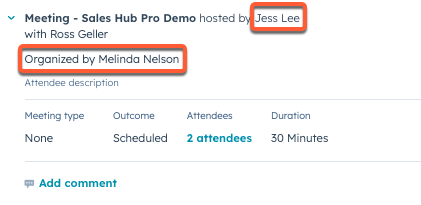
Users can also use the Activity created by property (organizer) and the Activity assigned to property (host) to create a report.

Assign a meeting outcome on desktop
After the meeting takes place, the host can assign a meeting outcome to track meetings with contacts better.
- On the record, click the Actions dropdown menu on the meeting engagement and select Edit.
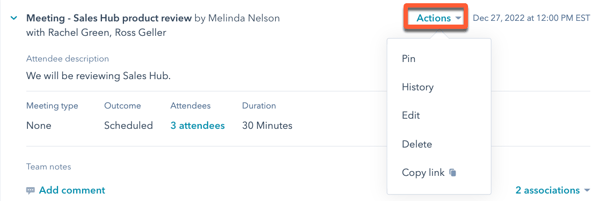
- Click the Outcome dropdown menu and select a meeting outcome.
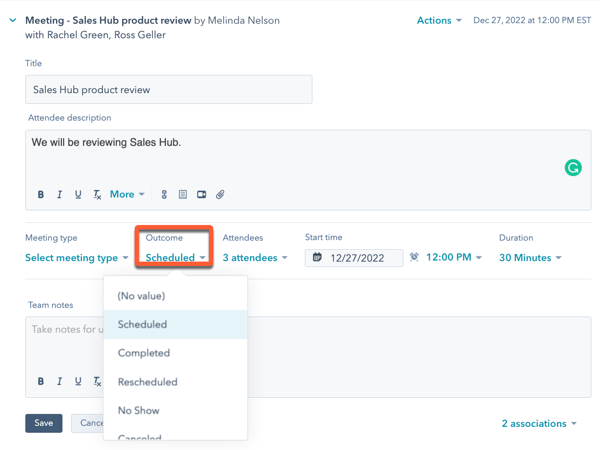
- Click Save.
Please note: changes to meeting descriptions on the contact record will only be sent to attendees if you are using Google Calendar and have turned on the Google Calendar two-way integration with HubSpot . If you are using an Office 365 calendar or do not have the integration turned on, update the meeting description in the calendar event to send changes to the attendees, not in the contact record.