![NovisLogo-White Logo-REGISTERED.svg]](https://support.novis.com.au/hubfs/NovisLogo-White%20Logo-REGISTERED.svg)
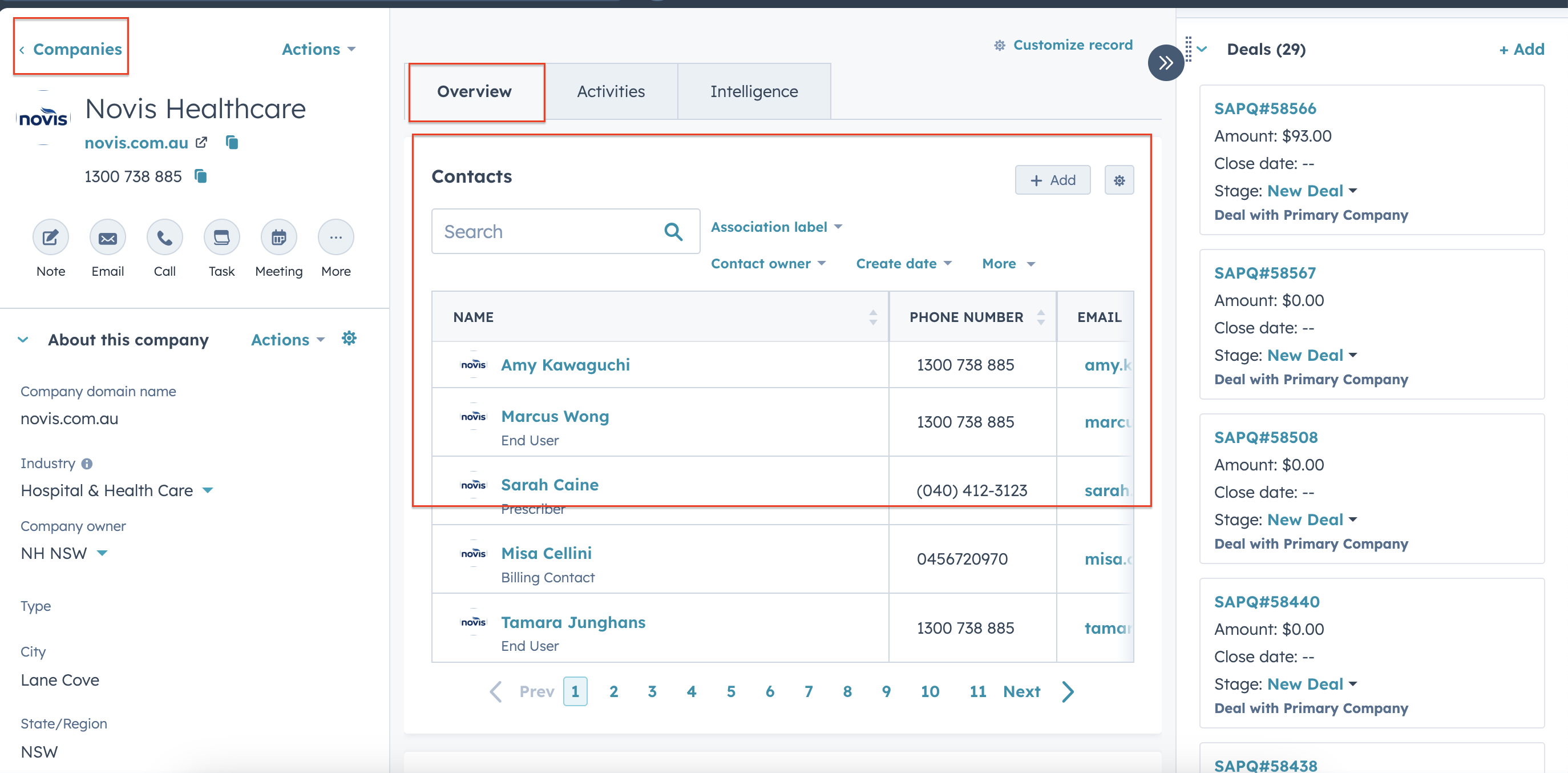
1. Access the Company record and locate the Contacts section in the middle panel
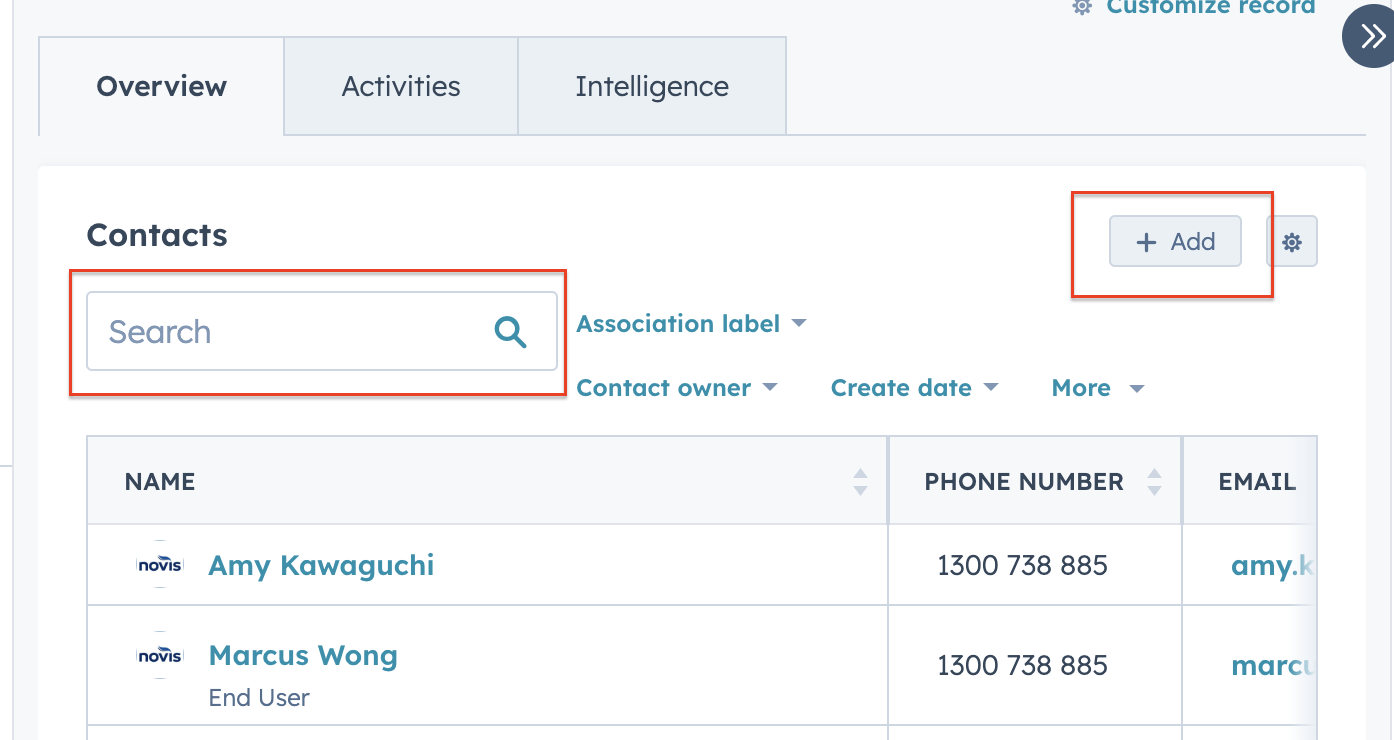
2. Search for the contact, or if they are not there, add them as the contact by clicking 'Add' as seen below
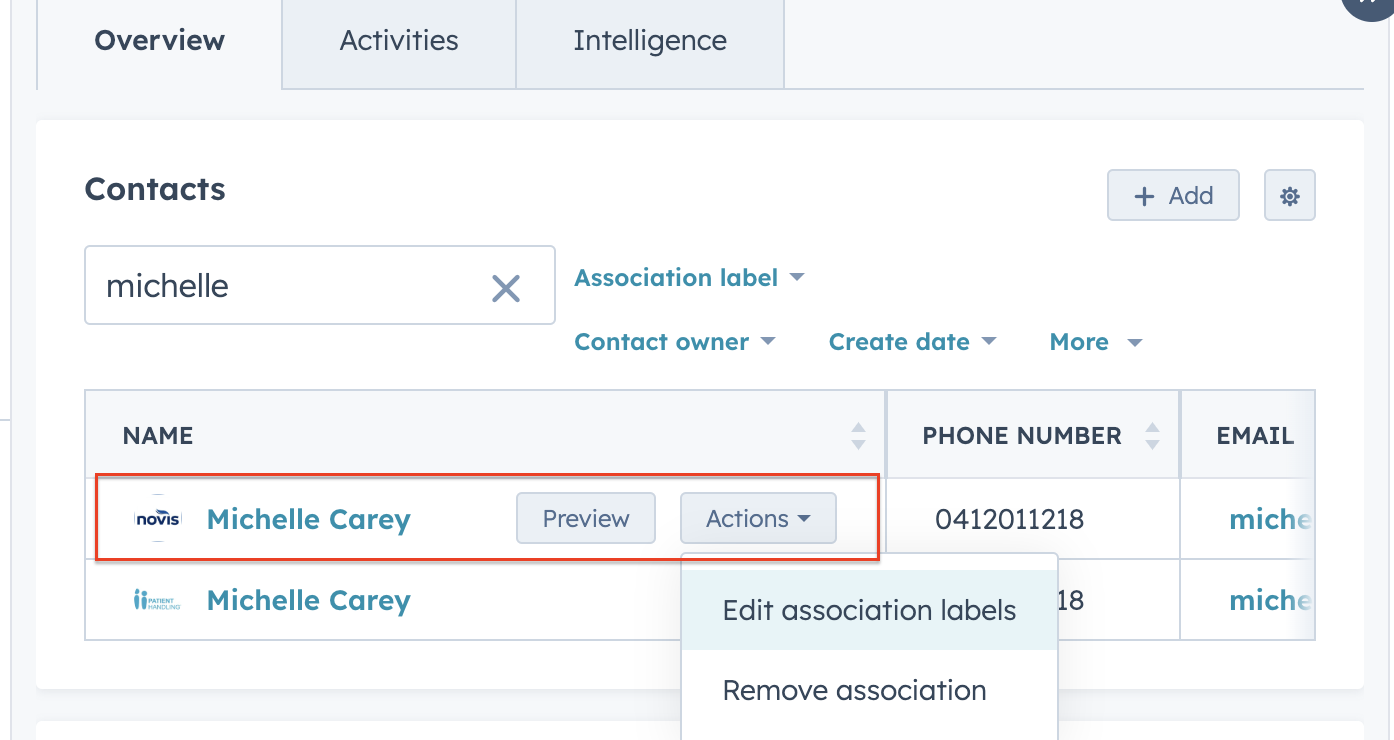
3. Once the contact is located, or added:
- Hover over the name until the "preview" and "actions" buttons appear
- Click on "actions" and view the dropdown menu
- Click on "edit association labels"
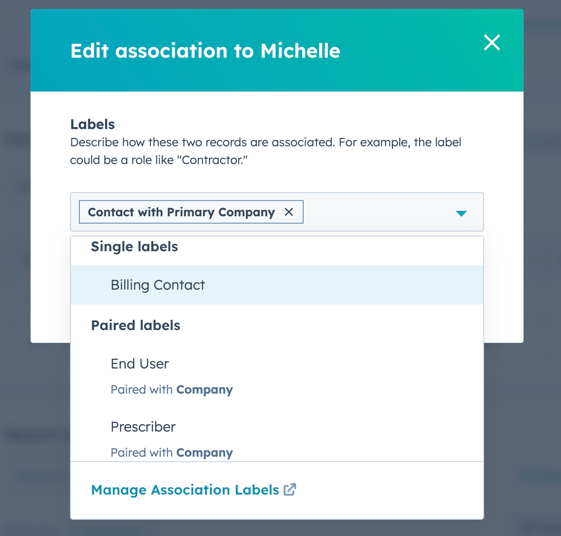
4. A pop up screen will appear with the options for selection. Choose between Billing Contact, End User and Funding Body.
Click to make your selection. "Contact with Primary Company" label can remain.
Click on the Update button and the pop up window will close.
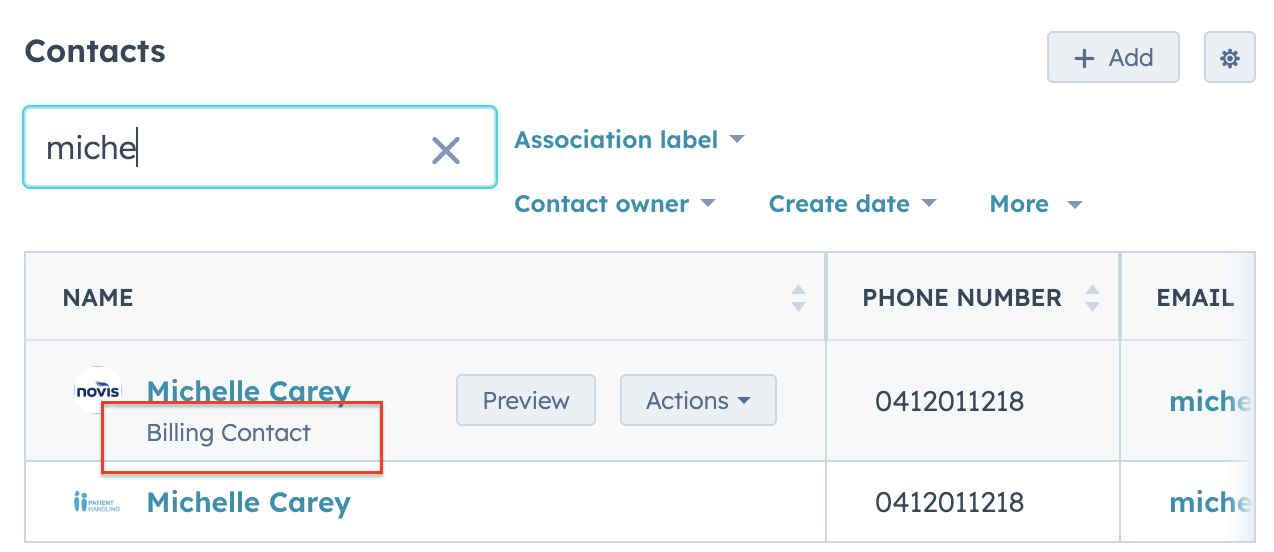
You will now see the label appear under the Contact name
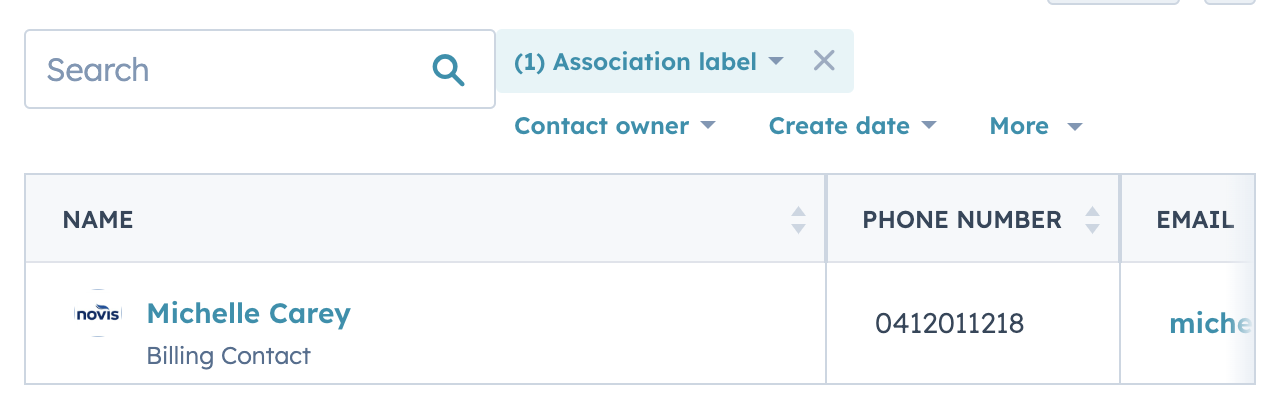
5. To search for the contact with the association label, click on the blue "Association label" dropdown filter and make your selection.
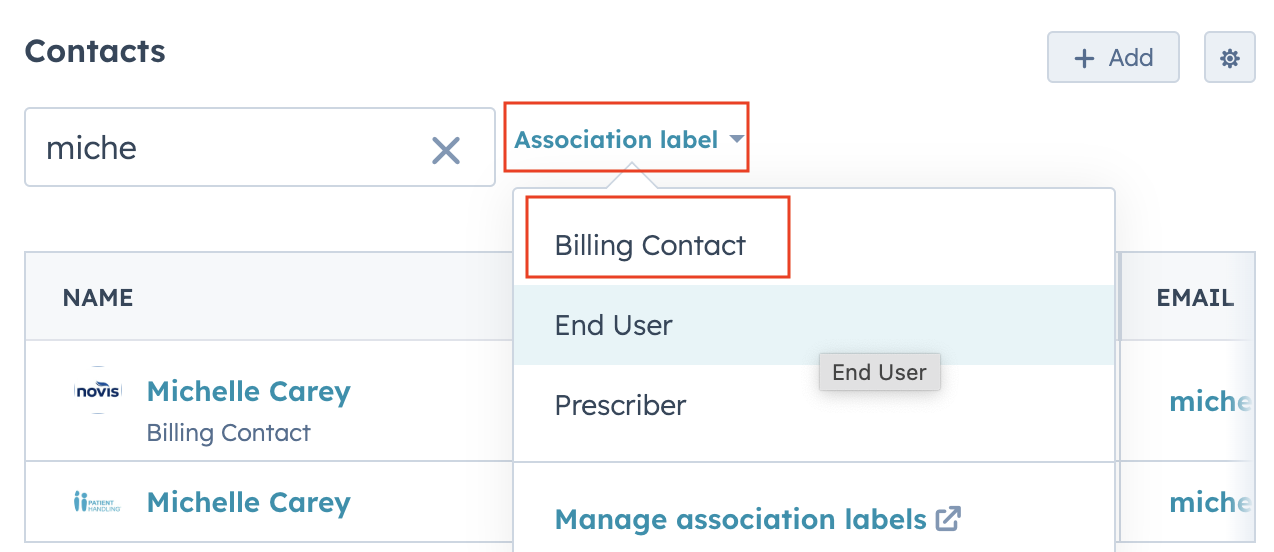
This will filter only those contacts with that label, and the filter button will appear blue to indicate that a filter has been selected.