![NovisLogo-White Logo-REGISTERED.svg]](https://support.novis.com.au/hubfs/NovisLogo-White%20Logo-REGISTERED.svg)
Use deals in HubSpot to track potential revenue through your sales process. You can associate deals with other records, such as contacts and companies involved in the deal. Once records are associated to a deal, HubSpot can associate the relevant activities to the deal record.
To customize how deals are created, learn how to:
To watch an overview on how to create a deal in your HubSpot account, check out the video below:
Please note: accounts that have the Business Units Add-on can create deal records for a specific business unit by selecting it in the main navigation, then, continuing one of the following processes.
Create a deal from your deals home page
To manually create a deal:
- In your HubSpot account, navigate to CRM > Deals.
- In the upper right, click Create deal.
- In the right panel, enter the details of the deal.

- In the Associate deal with section, search for and select records or line items the deal is related to.
- Click Create deal. If you want to create another deal, click Create and add another.
Create a deal on a record
To create a deal from a record you want associated with the deal:
- In the right sidebar of a record, in the Deals section, click + Add.
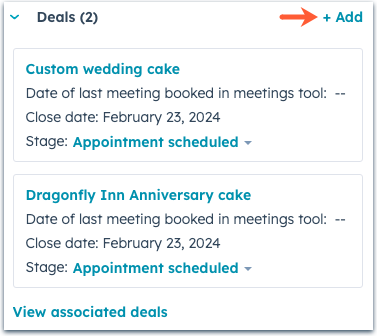
- Enter the details for your new deal in the Associate new tab. By default, the deal will be associated to the record.
- Once you're done, click Create, or Create and add another to add an additional new deal.
Create a deal from your Gmail or Outlook inbox
Once you’ve installed the HubSpot Sales Chrome extension, the Office 365 add-in, or the Outlook desktop add-in, you can create deals for your contacts from within your inbox. Learn how to create deals using contact profiles in Gmail, or contact profiles in Office 365 and Outlook on desktop.
Last updated April 2024